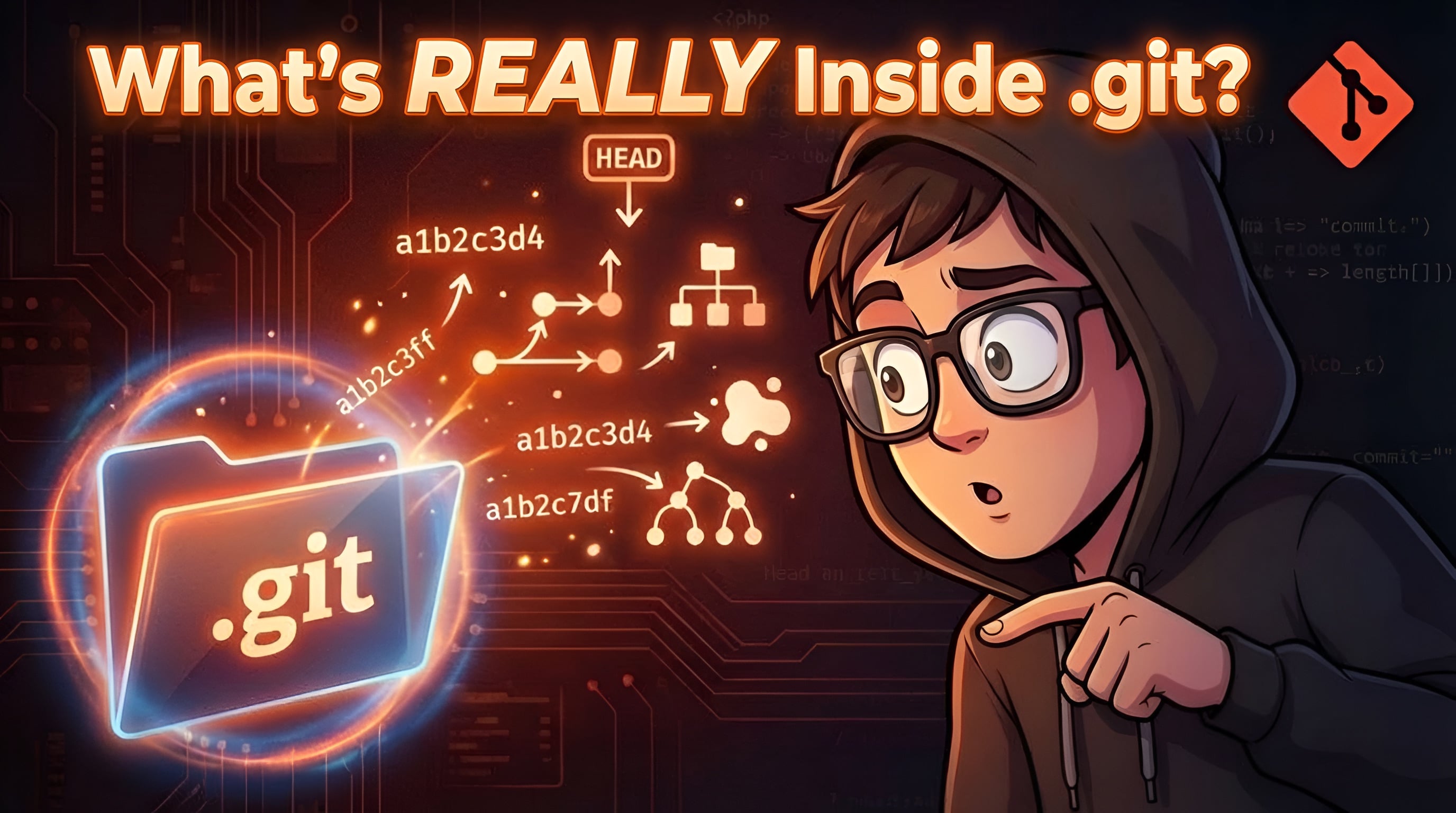
How Git Works: Inside the .git Folder
Understanding Git objects, .git folder structure, and what happens during git add and git commit
👋 Hey, I'm Mohd Kaif – a student documenting my journey through code. I write about what I'm learning in real-time – the wins, the struggles, and the "aha!" moments. From JavaScript and React to backend systems with Node.js, databases, DevOps, TypeScript, and AI integrations. This blog is my public learning journal: honest, evolving, and always exploring. If you're curious about any of these topics, let's learn and build together!
Ever experienced any of these Git nightmares?
Typed
git add .and wondered where your files actually went?Stared at a "detached HEAD" warning and felt your stomach drop?
Accidentally deleted
.gitand watched weeks of work vanish?Got a merge conflict and had no idea what Git was actually trying to tell you?
You're not alone.
Most developers interact with Git daily but understand it poorly. We memorize commands like incantations—git add, git commit, git push—and hope they work. When they don't, Git transforms from helpful assistant to cryptic oracle, speaking in riddles about "trees," "objects," and "refs."
Here's the truth: Git isn't magic. It's actually beautifully simple once you peek under the hood.
This guide strips away the mystery. You'll learn how Git actually stores your code, what lives inside that hidden .git folder, and how a handful of concepts explain every Git behavior you've encountered. By the end, Git will feel predictable, debuggable, and—dare I say—elegant.
📚 What You'll Learn
By the end of this article, you'll understand:
✅ What the .git folder contains and why it's the real repository
✅ How Git stores data using blobs, trees, and commits
✅ What actually happens when you run git add and git commit
✅ How Git uses hashes to guarantee data integrity
✅ Why branches are cheap and commits are immutable
✅ How to inspect Git's internals yourself (with real commands)
Prerequisites: None. Just curiosity and a willingness to think differently about version control.
🧠 Mental Model First: Git Tracks Snapshots, Not Changes
Before diving into folders and files, let's establish the foundation that explains everything about Git:
Git doesn't track files or changes. It tracks snapshots of your entire project.
Every commit represents a complete picture of your codebase at a moment in time. Git doesn't store "added 3 lines to app.js"—it stores the entire state of your project, then cleverly optimizes storage behind the scenes.
This single idea unlocks understanding:
Why branching is instant: Creating a branch just adds a pointer to an existing snapshot
Why commits are permanent: Snapshots can't be edited, only replaced
Why rebasing "rewrites history": It creates new snapshots with different parents
Contrast this with older systems like SVN, which stored changesets (diffs) and reconstructed files by replaying those changes. Git does the opposite: stores snapshots, calculates diffs on demand.
Keep this mental model close. It's your compass through everything that follows.
🗂️ The .git Folder: Your Project's Time Machine
When you run:
git init
Git creates a hidden directory called .git. This folder is your repository. Everything else—your actual code files—is just a working copy extracted from data stored inside .git.
Proof: Delete .git, and Git instantly forgets every commit, branch, and piece of history. Your files remain, but Git's memory vanishes.
The Essential Structure
Here's what lives inside .git:
.git/
├── objects/          # Git's database (all your data lives here)
├── refs/             # Pointers to commits (branches, tags)
├── HEAD              # Points to your current branch
├── index             # Staging area (upcoming commit)
├── config            # Repository settings
├── hooks/            # Scripts triggered by Git events
└── logs/             # History of ref updates
For understanding Git's core behavior, focus on these four:
objects/— Git's content databaserefs/— Branch and tag pointersHEAD— Your current positionindex— The staging area
Let's explore each one.
🔷 Git Objects: The Three Building Blocks
Git stores everything as objects. There are four types, but three do the heavy lifting:
Blob — Stores file contents
Tree — Stores directory structure
Commit — Stores snapshot metadata
Tag — Optional human-friendly labels
Think of them as Lego blocks. Simple pieces that combine to create complex structures.
1. Blob: Pure Content
A blob (binary large object) stores the contents of a file. Nothing more.
Key characteristics:
No filename: Just raw bytes
No permissions: Stored separately
Content-addressed: Identical content = identical blob
If you have two files with the same content in different directories, Git stores one blob and references it twice. Instant deduplication.
Try this:
# Create a file
echo "Hello Git" > test.txt

# Add it to staging
git add test.txt

# Find the blob hash
git ls-files -s
# Output: 100644 a1b2c3d4... 0    test.txt

# View the blob contents
git cat-file -p a1b2c3d4
# Output: Hello Git
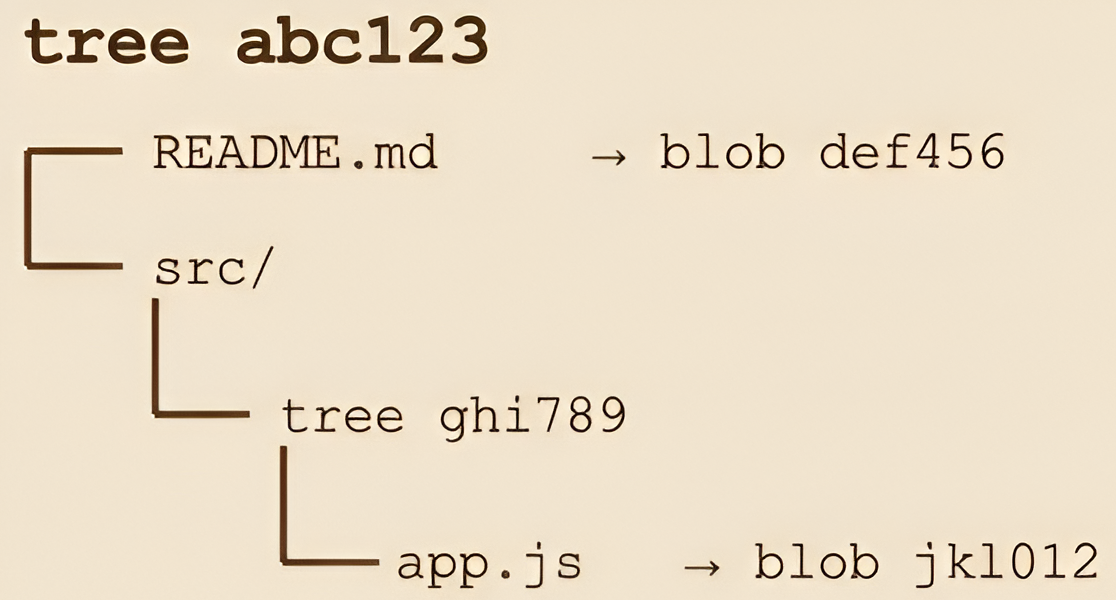
2. Tree: Directory Structure
A tree represents a directory. It maps names to content:
Filenames → blobs (files)
Subdirectory names → other trees (folders)
Trees answer: "What files exist, with what names, pointing to which content?"
Example tree structure:
3. Commit: Snapshot + Context
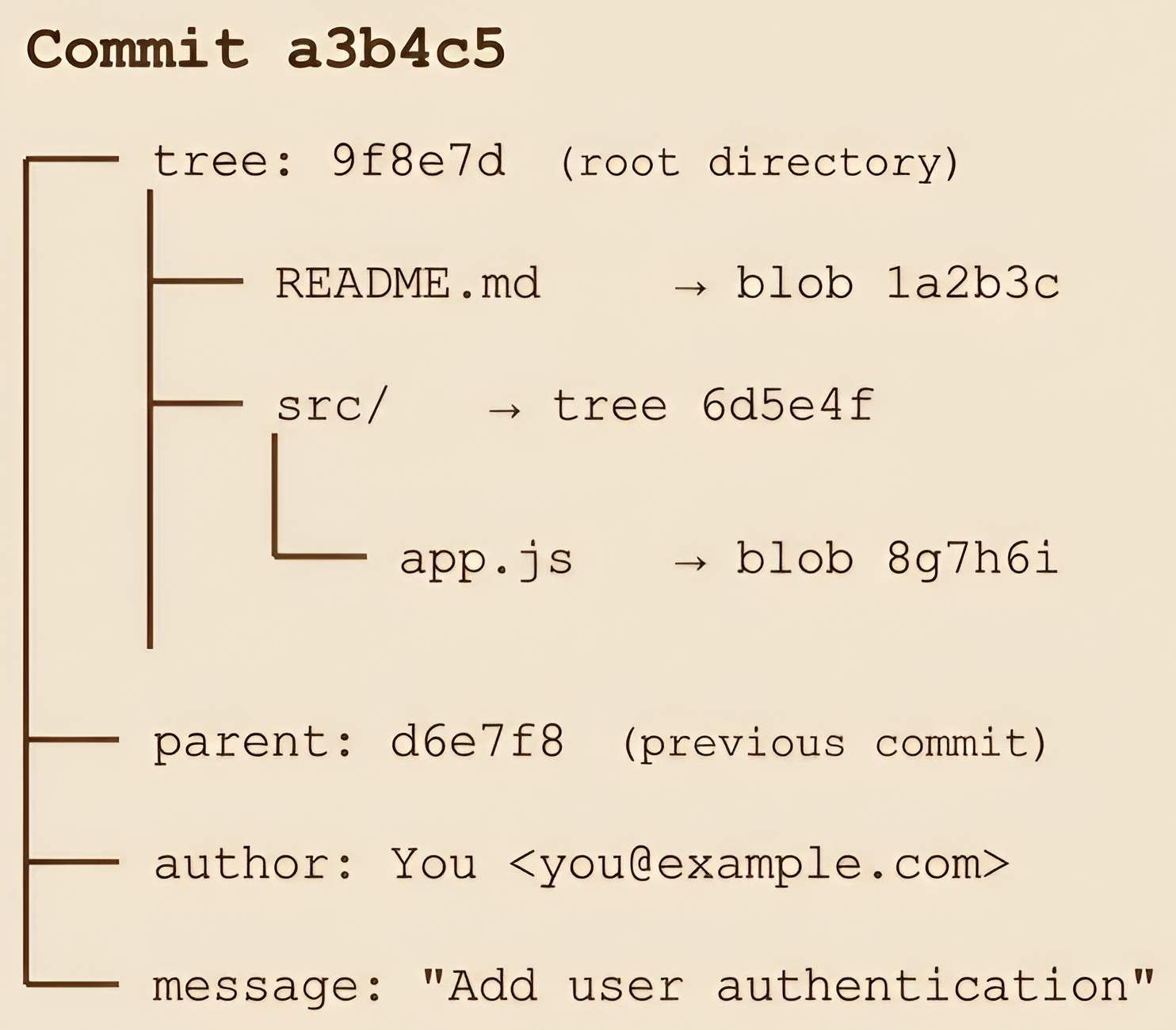
A commit ties everything together. It contains:
A root tree hash (pointing to your project's state)
Parent commit hash(es) (creating the history chain)
Author & committer info
Timestamp
Commit message
Critically: Commits don't store files directly. They point to a tree, which points to blobs.
Inspect a commit yourself:
# View the latest commit
git cat-file -p HEAD
# Output:
# tree a3b4c5...
# parent d6e7f8...
# author Your Name <you@example.com> 1234567890 +0000
# committer Your Name <you@example.com> 1234567890 +0000
#
# Your commit message here
See that tree hash? That's your entire project snapshot.
🔐 How Hashes Make Git Trustworthy
Every Git object has a unique identifier: a SHA-1 hash (40 characters) or SHA-256 hash in newer Git versions.
This hash comes from:
SHA-1(object_type + object_size + content)
Why This Design Matters
🛡️ Immutability
Change even one byte → completely different hash. Git detects tampering instantly.
🔗 Integrity
Corrupt data? The hash won't match. Git knows something's wrong.
♻️ Deduplication
Same content = same hash = stored once, referenced everywhere.
📜 History Protection
Can't secretly alter commits. Changing history creates new hashes, breaking the chain.
This is why commits are effectively read-only. Git doesn't edit history—it creates new objects.
💾 Inside objects/: Git's Database
Open .git/objects/ and you'll see directories with two-character names:
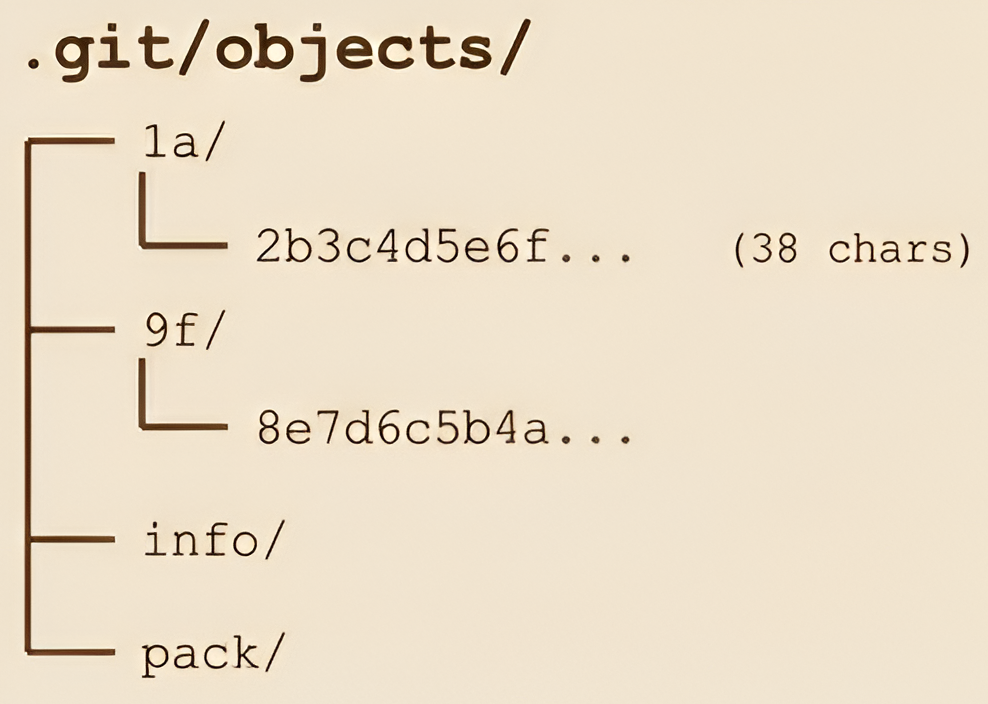
Git splits object hashes for performance:
First 2 characters → Directory name
Remaining 38 characters → Filename
This prevents massive directories that slow down filesystems.
🔍 Try it yourself:
# Find an object hash
git log --oneline -1
# Output: a1b2c3d Your latest commit

# Locate it in objects/
ls -la .git/objects/a1/
# You'll see: b2c3d4e5f6g7h8...

# Read the compressed object
git cat-file -t a1b2c3d4  # Shows type: commit, tree, or blob
git cat-file -p a1b2c3d4  # Shows contents
➕ What git add Really Does
Time to demystify staging. When you run:
git add file.txt
Git doesn't add the file to a commit. Here's what actually happens:
The Three-Step Dance
Creates a blob
Git readsfile.txt, compresses the content, and stores it in.git/objects/Calculates the hash
The blob gets a SHA-1 identifier based on its contentUpdates the index
Git records the filename and blob hash in.git/index
The index (also called staging area) is a binary file that represents:
"What the next commit will look like"
Nothing is committed yet. You're just preparing a snapshot.
Why the Staging Area Exists
The index gives you surgical control:
# Modify two files
echo "fix bug" >> auth.js
echo "add feature" >> api.js

# Stage only one
git add auth.js

# Commit just the bug fix
git commit -m "Fix authentication bug"

# Feature work stays in working directory
This decouples "what changed" from "what you're committing"—a powerful distinction missing from simpler version control systems.
🔬 Inspect the index:
git ls-files -s
# Output shows: mode hash stage filename
# 100644 a1b2c3d4... 0    file.txt
💾 What git commit Really Does
Now let's see how Git transforms your staged changes into permanent history:
git commit -m "Add user authentication"
The Five-Step Process
Reads the index
Git sees which blobs are stagedCreates tree objects
Builds trees representing your directory structureCreates a commit object
Points to the root tree and current HEADWrites the commit
Stores it in.git/objects/Updates the branch pointer
Moves your current branch (e.g.,main) to the new commit
No files are copied. No diffs are stored. Just new objects and updated pointers.
Visualizing a Commit
🔎 See it yourself:
# View commit structure
git cat-file -p HEAD

# Follow the tree reference
git cat-file -p <tree-hash>

# Examine a blob
git cat-file -p <blob-hash>
🔀 Branches: Just Pointers in Disguise
Here's a secret that changes everything:
A branch is just a 41-byte file containing a commit hash.
Seriously. Look:
cat .git/refs/heads/main
# Output: a3b4c5d6e7f8g9h0i1j2k3l4m5n6o7p8q9r0s1t2
That's it. One line. One hash.
Creating a branch? Git writes a new file. Switching branches? Git reads a different file. Deleting a branch? Git removes the file.
What About HEAD?
HEAD tells Git where you are:
cat .git/HEAD
# Output: ref: refs/heads/main
This is a symbolic reference—it points to a branch, which points to a commit.
Detached HEAD happens when HEAD points directly to a commit instead:
git checkout a3b4c5d6
# HEAD now contains: a3b4c5d6e7f8...
# Not pointing to a branch anymore!
🧪 Experiment safely:
# Create a branch manually
echo "$(git rev-parse HEAD)" > .git/refs/heads/my-experiment

# Git recognizes it
git branch
# * main
#   my-experiment

# Switch to it
git checkout my-experiment
📊 How Git Tracks Changes Over Time
If Git stores snapshots, where do diffs come from?
Git computes diffs on demand by:
Finding two commits
Comparing their tree structures
Walking through blobs to find differences
History is a graph of snapshots, not a sequence of patches.
This Explains Everything
Why merging creates a new commit with multiple parents:
    A---B---C  (main)
     \       \
      D---E---M  (feature merged)
Commit M has two parents: C and E. It's a new snapshot combining both.
Why rebasing rewrites history:
# Before rebase
A---B---C  (main)
 \
  D---E  (feature)

# After rebase
A---B---C  (main)
         \
          D'---E'  (feature)
Commits D' and E' are new objects with the same changes but different parents.
Why cherry-pick works:
git cherry-pick abc123
Git calculates the diff between abc123 and its parent, then applies it to your current branch. It's not moving a commit—it's creating a new one with similar changes.
🏋️ Hands-On Challenge: Explore Your Own Repository
Time to apply what you've learned. Open a terminal in any Git repository and try these:
Challenge 1: Find Your Latest Commit
# Get the commit hash
git log -1 --oneline

# Inspect the commit object
git cat-file -p HEAD

# Follow the tree reference
git cat-file -p <tree-hash-from-above>
Question: How many tree objects does your commit reference?
Challenge 2: Create a Blob Manually
# Create content
echo "Git is awesome" | git hash-object -w --stdin

# Git returns a hash like: 9f8e7d6c...

# Read it back
git cat-file -p 9f8e7d6c
Question: What happens if you run the same command twice?
Challenge 3: Inspect the Staging Area
# Stage a file
echo "test" > demo.txt
git add demo.txt

# View the index
git ls-files -s

# Compare to the object database
ls .git/objects/*/
Question: Can you find the blob for demo.txt in the objects directory?
Challenge 4: Visualize Your History
# See the commit graph
git log --oneline --graph --all

# See what changed between commits
git diff HEAD~1 HEAD

# See tree differences
git diff-tree HEAD
Question: How does Git represent merge commits differently from regular commits?
❌ Common Misconceptions Debunked
Myth 1: "Git Stores Diffs"
Reality: Git stores complete snapshots. It calculates diffs when you request them (git diff, git log -p).
Myth 2: "Commits Modify Previous Commits"
Reality: Commits are immutable. "Amending" a commit creates a new object with a new hash.
Myth 3: "Branches Are Expensive Copies"
Reality: Branches are 41-byte text files. Creating 100 branches takes milliseconds and uses ~4KB of disk space.
Myth 4: "The Working Directory Is the Source of Truth"
Reality: .git/objects/ is the source of truth. Your working files are just a checkout.
Myth 5: "Merge Conflicts Are Git's Fault"
Reality: Conflicts happen when Git successfully identifies incompatible changes and asks you to decide. Git is protecting your work.
🚀 Why This Knowledge Matters
Understanding Git internals transforms you from a command memorizer to a confident troubleshooter:
🔧 Debugging becomes logical:
Repository corrupted? Check
.git/objects/Branch pointer wrong? Inspect
.git/refs/Lost commits? Use
git reflog(which reads.git/logs/)
⚡ Advanced workflows make sense:
Interactive rebase? Creating new commits with cherry-picked changes
Git bisect? Binary searching through commit history
Submodules? Nested
.gitrepositories
🎯 Design better processes:
Structure branches knowing they're just pointers
Use staging area intentionally for clean commits
Understand merge vs. rebase tradeoffs at a fundamental level
👥 Explain Git to others:
You stop saying "just trust me" and start explaining why Git behaves certain ways.
📖 What to Learn Next
You now have a solid mental model of Git. Here are logical next steps:
Intermediate Topics
Packfiles & Garbage Collection
How Git optimizes storage by compressing objectsRemote Repositories
Understandingorigin,fetch,push, and refs synchronizationGit Hooks
Automating workflows with scripts in.git/hooks/Reflog & Recovery
Using.git/logs/to recover "lost" commits
Advanced Topics
Interactive Rebase
Rewriting history with surgical precisionGit Internals Commands
git hash-object,git update-index,git write-tree,git commit-treeSubmodules & Subtrees
Managing nested repositoriesGit Configuration
Customizing behavior via.git/config
Resources
Pro Git Book — Free, comprehensive, official
man git-<command>— Built-in documentationGit from the Bottom Up — Technical deep dive
🎯 The Core Mental Model
If you remember nothing else, remember this:
Git stores objects
├─ Objects are identified by hashes
├─ Commits point to trees
├─ Trees point to blobs
├─ Branches are pointers
└─ .git is the database
Once you internalize this model, Git becomes boring—in the best possible way. Predictable. Debuggable. Obvious.
No more magic. No more mystery. Just a brilliantly designed content-addressed storage system with a graph of immutable snapshots layered on top.
Final Thoughts
Git isn't magic. It's a carefully crafted tool built on simple, elegant principles:
Content-addressed storage (hashes)
Immutable snapshots (commits)
Cheap pointers (branches)
Explicit staging (index)
The .git folder isn't an implementation detail—it's the heart of the system. Understanding what lives there, how objects connect, and how commands manipulate pointers gives you a mental model that scales from hobby projects to massive production systems.
Git rewards understanding. And once it clicks, you'll never look at git commit the same way again.
Now go forth and explore your own .git folder. The best way to solidify this knowledge is to poke around, break things (in a test repo!), and see what happens.
Happy hacking! 🚀
💬 Got Questions?
Drop them in the comments! Here are topics for future articles:
Git Hooks Deep Dive - Automate workflows with pre-commit, post-merge, and custom scripts
Mastering Git Rebase - Interactive rebasing, squashing commits, and rewriting history safely
Git Internals: Packfiles & Garbage Collection - How Git optimizes storage and when to run
git gcRecovering Lost Work - Using reflog, fsck, and other recovery techniques to save your code
Advanced Merge Strategies - Octopus merges, subtree merging, and resolving complex conflicts
Git Workflows for Teams - Git Flow, GitHub Flow, trunk-based development, and choosing what fits
Found this helpful? Share it with someone who's still afraid of Git. Let's turn confusion into confidence, one commit at a time.


